Créer sa carte personnalisée
Comment créer et exporter des maps de Unreal Engine vers Nanos World
Les maps et les levels sont les ressources les plus simples que vous pouvez créer et importer. In Unreal, maps are called Levels, usually these levels are filled with a Landscape component to make the terrain, some Lights and some Static Meshes (Trees, Houses, etc).
Please refer to Unreal's Official tutorial - Working with Levels.
Attention! Cette page est ancienne et ce tutoriel peut être obsolète ! Les images font référence ici à Unreal Engine 4 et peuvent avoir changé. Un nouveau tutoriel mis à jour sera bientôt disponible !
Règles pour créer une Map/Level
- Do not spawn/place Dynamic Meshes (with Physics), as they will not be synced in-game. You need to spawn them as a Prop through the scripting.
- Add a “Sun” actor-tag to all Lighting/Sky/Sun related actors (DirectionalLight, SkyLight, DomeMesh, SkyAtmosphere or SunSky), this will allow, if wanted, to your light to be overridden by scripters to use, instead, the Official nanos world Sun through
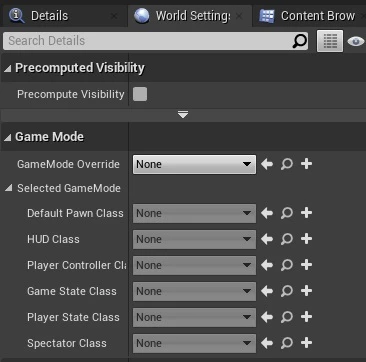
World.SpawnDefaultSun(), which allows in-game light/sun customization. - If you are creating a Map, please remember to nullify (set to None) all references it has for Unreal GameModes Override in the World Settings:
Commencer
Before proceeding, please make sure you read Creating & Importing Assets Guide.
The first step is to create a folder inside the Content/ folder, this step is very important. Nommez ce dossier comme vous le souhaitez.
- Développez le menu.
- Clic droit sur le Content.
- Crée un nouveau dossier.
Now let's create the Map itself, in Unreal maps are called Levels, to do so:
- Cliquez droit sur l'espace de contenu.
- Créer un nouveau level.
Renommez-la avec le nom de la map que vous souhaitez, enregistrez-la et ouvrez-la. You will notice the Viewport got black, this is because the Map you just opened doesn't have anything, let's add some stuff into it:
Ajouter des objets
First let's add a floor, for that just drag-and-drop a Plane from Place Actors -> Basic window into the Viewport:
With the plane selected, you will notice it is a simple Static Mesh, this Static Mesh is a model already included in the Engine, so it is important that you copy this Mesh to your Content/YourAssetPack/ folder to avoid any further export problem:
Pour trouver l'emplacement de votre mesh, appuyez sur la loupe à droite de l'élément Static Mesh, à droite de l'écran :
This will open the Engine's folder which contains some Basic meshes which come with the Engine:
Let's copy some Basic Meshes into our AssetsPack folder to be used later, including the Plane:
Utilisez CTRL+C + CTRL+V pour copier les assets dans votre dossier :
Now let's replace the plane mesh we were using to our copied mesh, for that, just
- Sélectionnez le mesh plane copié.
- Press the arrow on your Plane Actor to replace it's Static Mesh (alternatively you can just Delete the spawned Plane and drag and drop the new Plane from your assets pack's folder):
After that, with your Plane (floor) selected, let's just scale it to X = 10, Y = 10, Z = 10 and centralize it on X = 0, Y = 0, Z = 0:
We can also add some lights, for that, just drag and drop a Directional Light (Sun Light/Shadows) and a Sky Light (Shadow's Color) into your level (you can fly around with Right Click + WASD in the viewport, or press F to centralize the Plane - if selected):
Ajout de matériaux
Bon travail, maintenant on peut voir la chose ! Now let's add some color to it, applying color and textures in Unreal are made through Materials, for that, let's just create a Material
- Clic droit.
- Créer un nouveau matériau.
Rename it to M_Plane and open it up:
We won't cover all aspects of Materials in this tutorial, for now let's just pin a Vector3 node with a color into Base Color input, for that Right Click on the screen and search for Constant3Vector:
Après cela, mettez-le dans l'entrée Base Color :
Sélectionnez le nœud Vector3 et choisissez une couleur pour lui :
Now save and close this Material window, and you are able to drag and drop your material into the Mesh you want, let's do it for the Plane:
And voila, it gets greenish (or the color you selected in the Plane's Material screen)!
Now let's drag'n drop other Meshes into our Level, like so:
Also, the ADK project provides a built-in Sun & SkyBox Actor (to fill up the sky with color and clouds), to add it, just look into NanosWorld/Blueprints/World/ for BP_SunSky and drag it to the viewport.
Vous pouvez créer un nouveau matériau et l'utiliser pour peindre ces meshes également :
If you (1.) select the Directional Light, you can change it's (2.) Rotation, also, remember to set it to (3.) Movable, so it's shadows work in Real Time, feel free to tweak the light as you want, including it's Color and intensity:
When you are fine with it, move your camera to see the whole map and take a screenshot of it, we will use that for a Thumbnail afterwards (save it anywhere with the same name as your Map as .webp, in our case: MyAwesomeMap.webp):
Et nous avons terminé ! Save everything and let's export it!
Exporter la map
Après avoir terminé toutes les étapes, vous pouvez les exporter vers nanos world ! Please refer to Exporting & Cooking your Assets docs page before proceeding.
Configuration du Asset Pack
After you cooked your assets and copied the generated folder into your server's Assets/ directory. Il est temps de configurer le Asset Pack ! For that please refer to Configuring your Assets.toml docs page before proceeding.
Now that you created your Assets.toml and configured the unreal settings, make sure you set up your Static Meshes properly in the [assets.maps] category, like that:
# maps
[assets.maps]
    MaMapIncroyable = "MaMapIncroyable"
This way we can load it through Config.toml!
Ajouter une Miniature
To add a thumbnail to your map, copy the .webp image into the same folder as your map .umap file.
In our case, our .umap is at the root, so we just drag it there:
You can now just start the New Game with the Sandbox package selected and VOILA! Votre nouvelle carte jouable créée de toutes pièces !
Configuration de votre carte
Il est également possible d'ajouter un fichier de configuration, des données personnalisées et même un package exclusif (scripting) pour votre carte ! Please refer to Map Script and Configuration for more information!