Voice over IP (VOIP)
How VOIP works in nanos world and how to use it.
nanos world provides a built-in Voice over IP (VOIP) system using Steam's native implementation that allows players to communicate with each other in-game through voice. The VOIP system is highly customizable and can be configured to use local/proximity chat, global channels, or both.
VOIP Audio Types
The VOIP system is based on two main types: local/proximity and global.
Local/Proximity
Local VOIP uses a 3D spatialized audio to output the Player's voice. Usually this is attached to the possessing Player's Character and simulates a realistic audio environment where players can only hear each other if they are close by.
You can enable or disable local chat for a player using Player:SetVOIPLocalSetting(). The volume of the local chat can be adjusted with Player:SetVOIPLocalVolume(), and how far the voice can be heard with Player:SetVOIPLocalMaxDistance().
Global
Global VOIP allows players to communicate with each other regardless of their location in the game world. There are 63 global channels available (1-63). Players can be configured to listen or speak on specific channels.
You can configure a player's settings for a specific global channel using Player:SetVOIPGlobalChannelSetting() or for all channels at once with Player:SetVOIPGlobalAllChannelsSetting(). Also the volume of the global chat can be adjusted with Player:SetVOIPGlobalVolume().
You can check in which channels a player is listening or speaking with Player:GetVOIPListeningChannels() and Player:GetVOIPSpeakingChannels().
-- Creates a "team radio": players of each team speak and listen only in their team channel
function SetPlayerTeamRadio(player, team)
    -- Stops listening and speaking in all global channels
    player:SetVOIPGlobalAllChannelsSetting(VOIPSetting.None)

    -- Speaks and listens in the team channel (team 1 uses channel 1, and so on)
    player:SetVOIPGlobalChannelSetting(team, VOIPSetting.Both)
end
High/Low Pass filters
In the Global Channels, it is possible to set filters on the Global audio with the methods Player:SetVOIPGlobalHighPassFilter() and Player:SetVOIPGlobalLowPassFilter().
We can simulate a Radio Effect by setting a High Pass filter like player:SetVOIPGlobalHighPassFilter(8000).
High/Low Pass filters are only available in the Global Channels.
VOIP Settings
The VOIP settings for both local and global channels are configured using the VOIPSetting enum. It is possible to define if the player will just listen, speak or both, on the local channel and on each global channel!
Knowing Who is Talking
The VOIP event is triggered when a player starts or stops talking, which is useful to display a "talking" indicator in your UI:
Player.Subscribe("VOIP", function(player, is_talking)
    Console.Log("%s is %s", player:GetName(), is_talking and "talking" or "silent")
end)
Muting
It is possible to mute a certain player using the Player:SetVOIPMuted() method. If this is called on Server side, the Player will be muted for everyone, but it can also be called on client side for a local mute.
Configuring Microphone
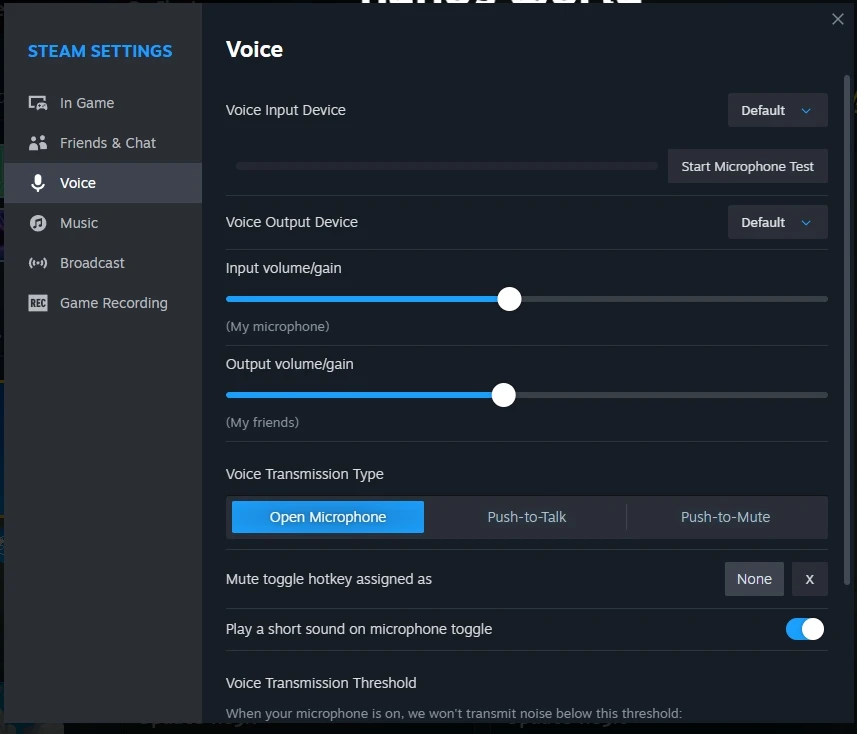
As we use Steam implementation, you can configure your microphone in the Steam's settings, which can be accessed through the Steam client or Shift+Tab Overlay. This allows you to adjust your microphone volume, test your microphone, and set other audio preferences.