Ladebildschirm
In nanos world it is possible to add a customized and dynamic Loading Screen to your Server using WebUI.
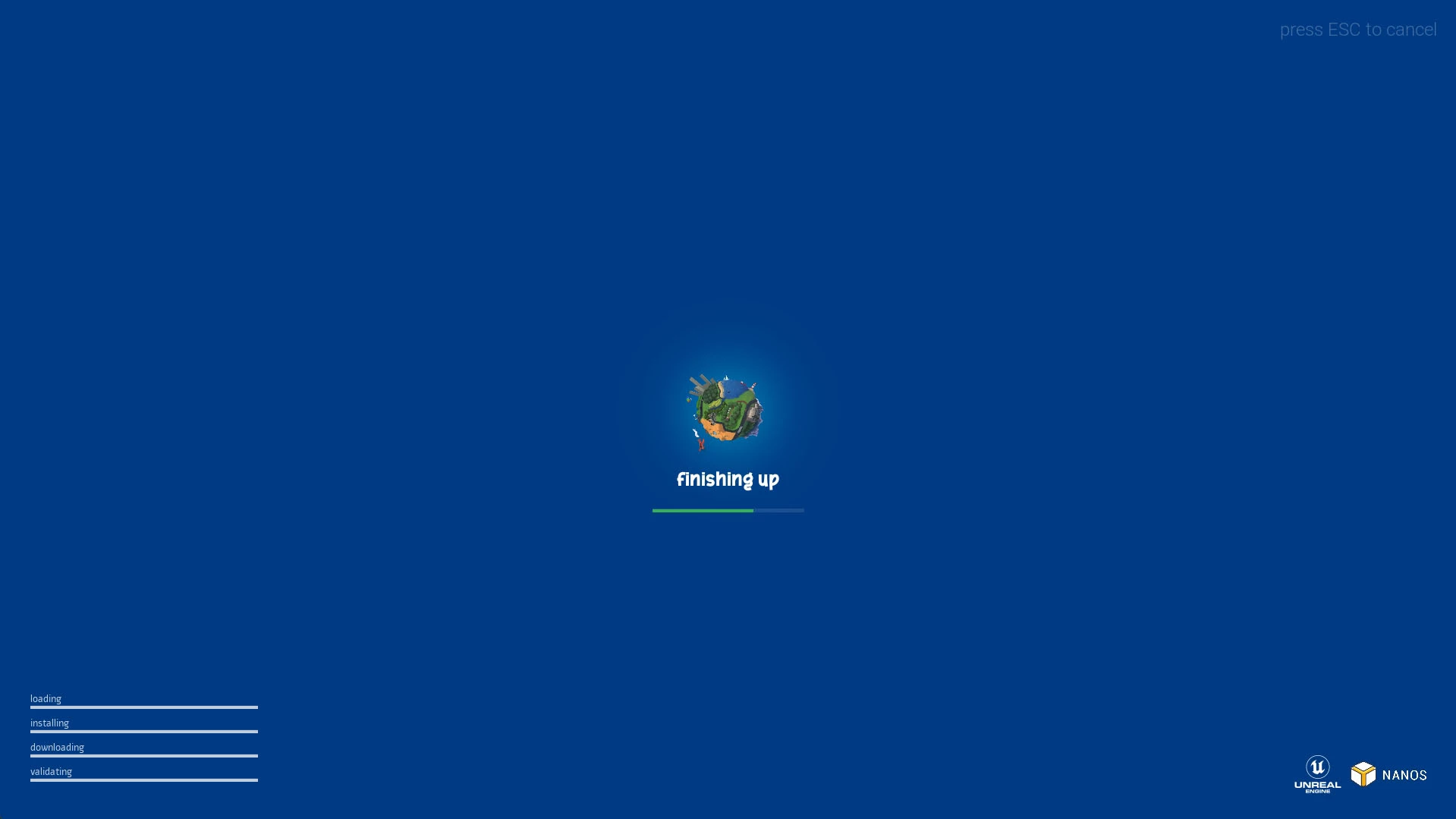
Ladebildschirm erstellen
For that, you will need to create a new Package of type loading-screen, and add your HTML/CSS/JS files into the Package's root folder. Your primary HTML file should be called index.html. Beispielsweise könnte dies wie folgt aussehen:
Packages/
└── my-loading-screen/
    ├── Package.toml
    ├── index.html
    ├── style.css
    └── ...
Abrufen des Lade- und Herunterlade-Fortschritts
To be able to display dynamic information in the screen, you can listen to the Event UpdateScreen (which will trigger every few ms):
Event UpdateScreen
| Parameter | Beschreibung |
|---|---|
message | Display the current state (loading, validating, downloading...) |
message_secondary | Zeigt das aktuelle Asset oder die aktuelle Datei, welche geladen oder heruntergeladen wird |
progress_small | Aktueller kleiner Fortschritt |
progress_small_total | Maximaler kleiner Fortschritt |
progress | Aktueller Fortschritt |
progress_total | Maximaler Fortschrittswert |
current_stage | The number value representing the current stage of the load (0 = None, 1 = Connecting, 2 = Fetching, 3 = Validating, 4 = Downloading, 5 = LoadingAssets, 6 = LoadingLevel, 7 = LoadingEntities, 8 = CompilingShaders, 9 = Finishing) |
Events.Subscribe("UpdateScreen", function(message, message_secondary, progress_small, progress_small_total, progress, progress_total, current_stage) {
    // HTML-Aktualisierung hier...
});
You can use progress and progress_total for filling up the main loading bar, and progress_small for a small/sub loading bar.
Always use progress / progress_total for getting the current % percentage, as progress_total can represent the total amount of files being downloaded for example.
Player Information
Also, it is possible to fetch Player’s information by accessing a global variable called LoadingScreen:
var LoadingScreen = {
	server: {
		ip,
		port,
		name,
		description,
	},
	player: {
		nanos_id,
		nanos_username,
		steam_id,
	}
}
The LoadingScreen var is only available a few frames after the Loading Screen browser is created.
Stop Menu Music
It is possible to turn off the built-in menu music by calling an event from Loading Screen JS:
Events.Call("StopMenuMusic")
Konfigurieren Ihres Servers für die Nutzung des Ladebildschirms
Currently Loading Screens only work in Dedicated Servers.
Make sure you configure your server's Config.toml as dedicated_server = true.
After creating your loading-screen package, you will need to configure your server to load it in your Config.toml. Just set the setting loading_screen to your Package's folder name.
# Ladebildschirm-Paket (der Ladebildschirm wird angezeigt, wenn die Spieler Ihrem Server beitreten)
loading_screen = "my-loading-screen"
Or start it with --loading_screen "my-loading-screen".